
A laptop is an important investment for work, study, and entertainment. Regular maintenance can help keep it reliable, protect your files, and reduce avoidable repair costs.
You do not need advanced technical skills to care for your computer. By following a few practical habits, you can help maintain its performance and physical condition.
1. Keep Your Laptop Clean
Dust, crumbs, and fingerprints can accumulate on a laptop over time.
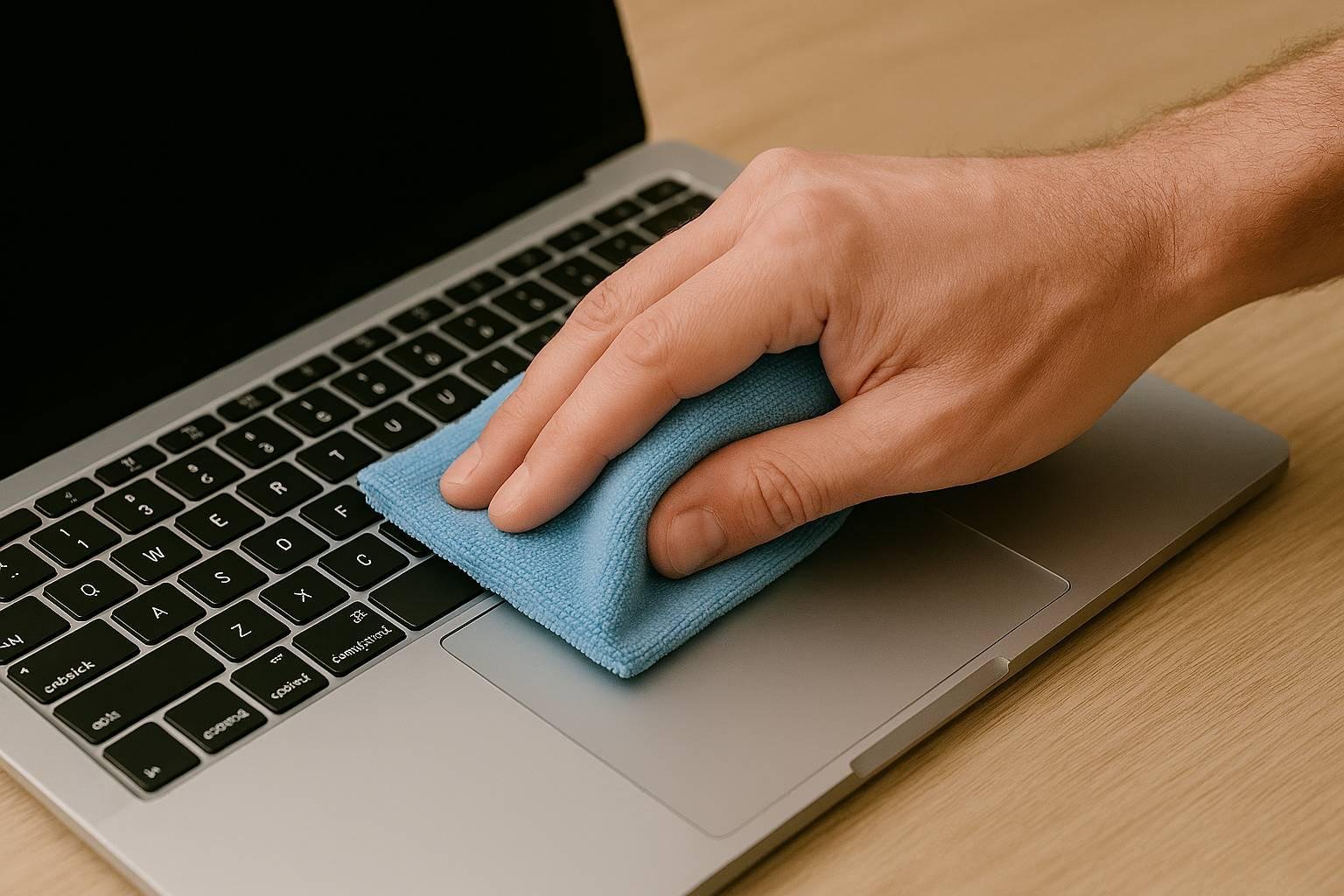
Turn the laptop off and disconnect its power supply before cleaning the exterior. Use a soft microfiber cloth and follow the manufacturer’s instructions for cleaning the display.
Avoid spraying liquid directly onto the screen or keyboard. Do not use household cleaners unless the manufacturer confirms they are suitable.
2. Protect the Battery
Modern laptops generally use rechargeable lithium-ion batteries. Their capacity gradually decreases with age and usage.
Avoid exposing your laptop to excessive heat. Use compatible charging equipment and follow the manufacturer’s recommendations for battery care.
Some laptops offer a battery charge limit that can help reduce the time spent at a full charge when the device is frequently plugged in.
3. Prevent Overheating
Place your laptop on a stable, hard surface that allows air to circulate. Soft beds, blankets, and cushions can block ventilation openings.
Keep vents clear of dust. If the laptop regularly becomes unusually hot, shuts down unexpectedly, or produces abnormal fan noise, have it inspected.
4. Install Security Updates
Software updates help protect your system from known vulnerabilities and may improve stability.
Enable automatic updates where appropriate and download drivers from trusted sources. If your operating system has reached the end of its security support, consider moving to a supported version or compatible replacement.
5. Back Up Important Files
Hardware failure, accidental deletion, theft, and malware can cause data loss.
Use a reliable external drive, a trusted cloud backup service, or both. Keep important files backed up regularly and test whether you can restore them.
For sensitive information, protect backups with suitable access controls and encryption.
6. Use Strong Passwords and Account Protection
Protect your laptop account with a strong, unique password. Enable multifactor authentication for important online accounts where available.
Lock the screen when stepping away, especially in offices, libraries, and shared spaces.
If your laptop supports full-disk encryption, consider enabling it to help protect stored data if the device is lost or stolen.
7. Carry Your Laptop Safely
Use a padded laptop bag or sleeve to reduce the risk of scratches and impact damage.
Avoid placing heavy objects on top of the laptop. Before putting it into a bag, make sure it is fully shut down or safely asleep and not overheating.
Keep liquids away from the keyboard and avoid carrying the laptop by its screen.
8. Manage Storage and Applications
Remove applications you no longer use and organize your files periodically.
Keep enough free space for temporary files, application updates, and normal system operations. Avoid deleting unfamiliar system files simply to gain storage space.
Use built-in storage management tools whenever possible.
9. Handle Repairs Carefully
If your laptop develops a hardware problem, check whether it is covered by the warranty before attempting repairs.
Battery swelling is a particular warning sign. Stop using and charging a laptop with a swollen battery, do not press or puncture it, and arrange professional service.
For upgrades, verify compatibility and use a qualified technician if the repair requires specialized tools or skills.
10. Inspect Your Laptop Periodically
Every few weeks, review storage space, available updates, backup status, and battery condition.
Look for loose hinges, damaged charging cables, unusual noises, or changes in performance. Early attention can prevent some small problems from becoming more expensive.
Common Laptop Maintenance Mistakes
Avoid using excessive liquid during cleaning, blocking ventilation, ignoring updates, downloading unknown utilities, or storing your only copy of important files on the laptop.
Do not assume that a laptop needs frequent factory resets or registry-cleaning software. Regular, sensible maintenance is usually a better approach.
Conclusion
Good laptop maintenance starts with cleanliness, safe charging habits, proper ventilation, reliable backups, and software security. These practices can help keep your device dependable for longer, although no maintenance routine can prevent every hardware failure.