
A slow laptop can make everyday activities frustrating. Programs may take too long to open, the browser may freeze, or the computer may struggle when several applications are running.
Fortunately, you can often improve performance without immediately buying a new laptop. The following tips explain how to identify common causes of slow performance and address them safely.
1. Restart Your Laptop
Restarting your laptop can close stuck applications and clear temporary system states.
If your computer has been running for days, save your work and perform a restart. If the problem returns immediately, investigate other possible causes.
2. Close Unnecessary Applications
Running too many applications at once can consume available memory and processor resources.
Close programs you are not using, especially applications that handle large files, video editing, or other demanding tasks.
Use your operating system’s task manager or activity monitor to identify programs consuming unusually high resources.
3. Disable Unnecessary Startup Apps
Some applications launch automatically whenever your computer starts. Too many startup programs can increase boot time and use resources in the background.
Review your startup settings and disable applications you do not need to launch automatically. Avoid disabling security software or unfamiliar system components without understanding their purpose.
4. Free Up Storage Space
A nearly full drive can make updates and file management difficult. Remove unnecessary downloads, duplicate files, and applications you no longer use.
Before deleting anything, check the contents carefully and back up important files.
Built-in storage cleanup tools are generally a safer starting point than unfamiliar cleaning applications.
5. Install System Updates
Operating system and driver updates can provide bug fixes, security improvements, and performance changes.
Install updates from trusted system settings or the computer manufacturer’s official support website. Back up important information before major upgrades.
6. Scan for Malware
Malicious software can use system resources, display unwanted advertisements, or interfere with normal operation.
Use a reputable security program and keep its protection updated. Avoid suspicious pop-ups claiming your laptop has dozens of urgent problems that can only be fixed by purchasing unknown software.
7. Reduce Browser Overload
Too many browser tabs and extensions can slow down your laptop.
Close tabs you no longer need and remove extensions you do not recognize or use. If a browser is consistently slow, check its built-in performance tools and update it to the latest supported version.
8. Check for Overheating
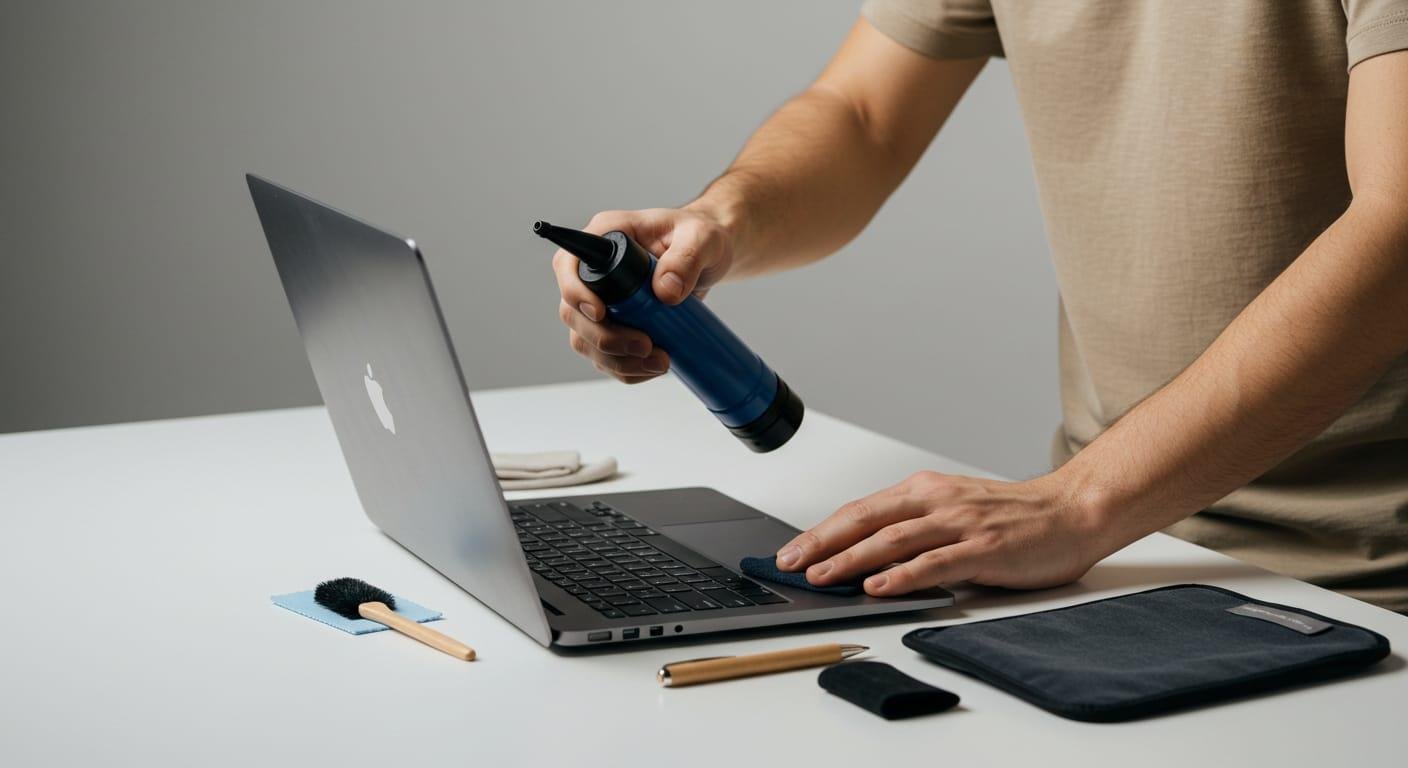
Dust buildup and blocked ventilation can cause a laptop to become hot. Some computers reduce performance when temperatures become excessive.
Use the laptop on a hard, flat surface and keep its air vents clear. If the fan becomes unusually loud or the computer overheats repeatedly, consider professional cleaning or repair.
Do not open the laptop unless you are comfortable with the procedure and understand the warranty implications.
9. Use an Appropriate Power Mode
Some laptops reduce performance when running in a power-saving mode. If you need maximum speed for demanding work, check the power settings while connected to a charger.
A higher-performance mode may use more electricity and generate additional heat.
10. Consider a RAM Upgrade
If your laptop frequently runs out of memory while multitasking, additional RAM may help.
First, confirm whether the memory is upgradeable, what capacity the system supports, and which memory type it requires. Some modern laptops have soldered RAM that cannot be upgraded.
11. Consider an SSD Upgrade
If your laptop still uses a mechanical hard drive, replacing it with a compatible SSD can significantly improve startup and application loading times.
Check drive compatibility and back up your files before upgrading. Some laptops use soldered storage or require specialized installation.
12. Identify the Real Problem Before Spending Money
Slow performance may result from limited RAM, storage problems, overheating, software conflicts, or aging hardware.
Use system diagnostics and review resource usage before replacing components. If the laptop has a failing drive, clicking noises, repeated crashes, or signs of battery swelling, seek professional help rather than continuing to use it normally.
When Should You Replace Your Laptop?
Consider replacement when essential applications no longer run adequately, hardware repairs are uneconomical, or the computer cannot receive necessary security updates.
Compare the cost of a repair or upgrade with the cost of a suitable replacement.
Conclusion
A few simple maintenance steps can improve laptop responsiveness and help extend its useful life. Start by restarting the computer, closing unnecessary programs, freeing storage, updating software, and checking temperatures. If the laptop remains slow, diagnose its hardware before investing in upgrades.